
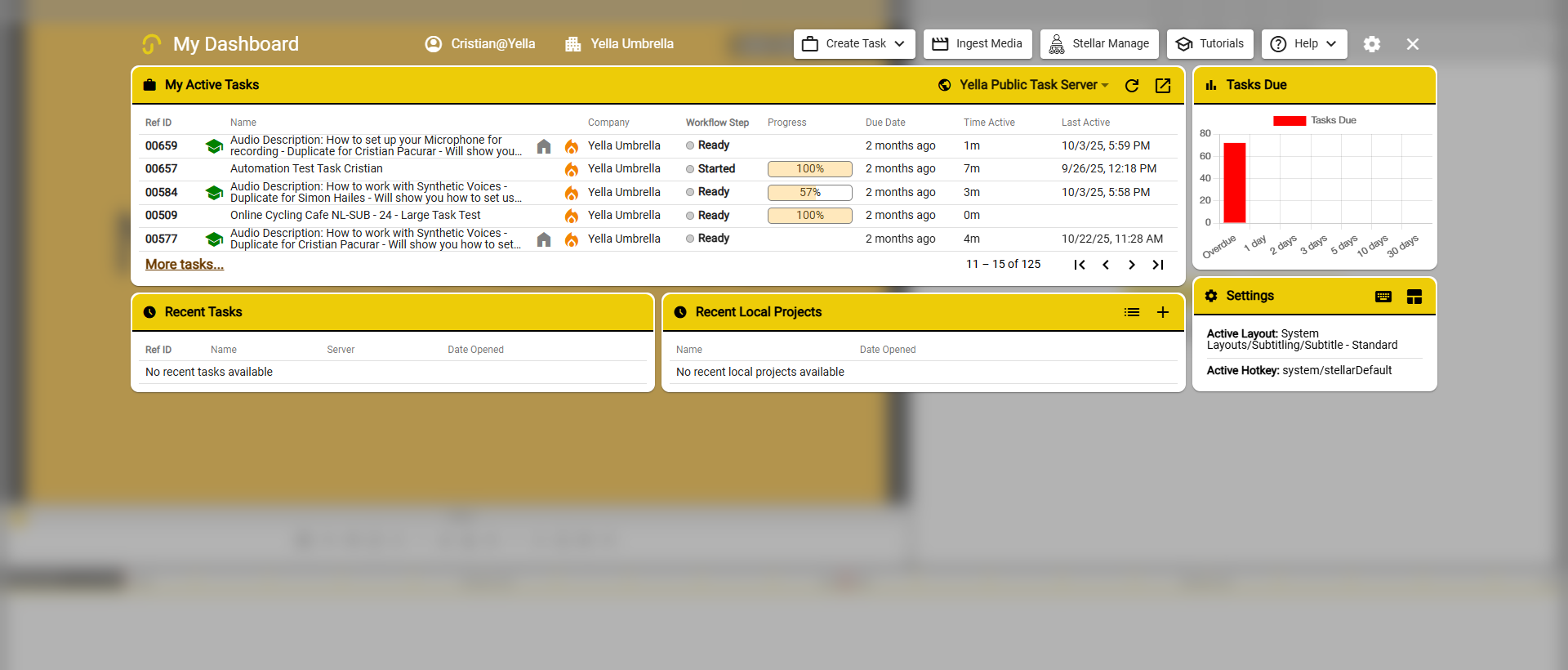
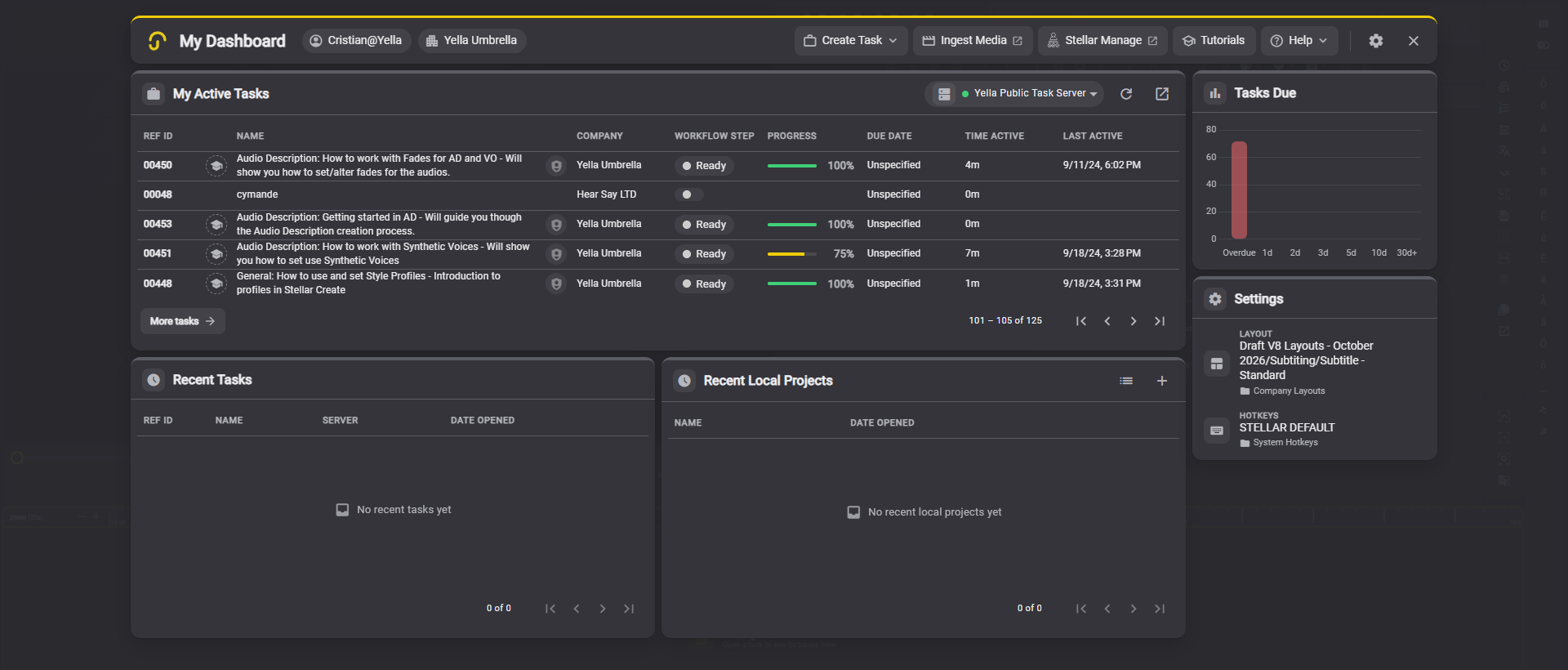
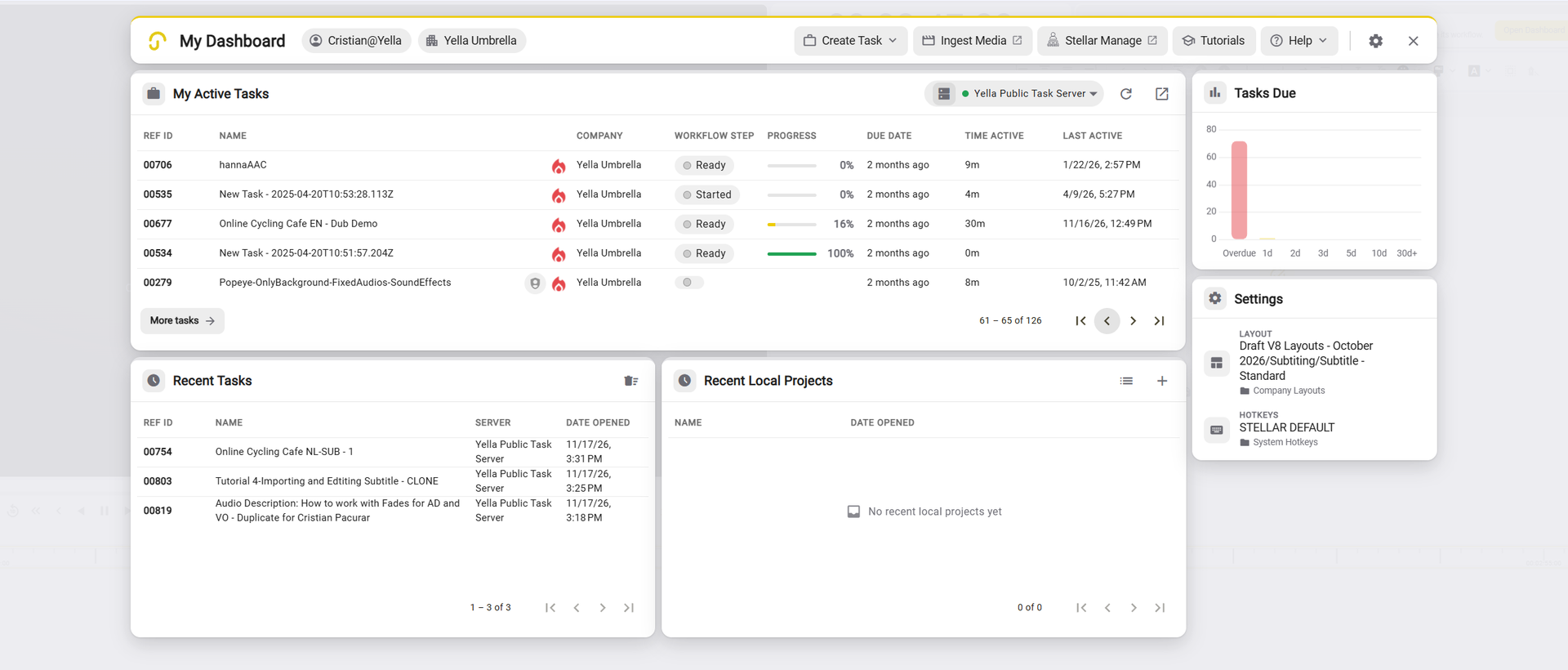
A Fresh Look & Improved Navigation
We've given Stellar Create a completely redesigned interface, with a cleaner layout and more intuitive navigation.
What's changed?
- A redesigned interface: every widget, dialog, menu and tooltip rebuilt on one quieter design, with the accent colour kept for the actions that matter.
- Light and dark themes, both designed in full. Pick one from the new theme picker, or let Stellar Create follow your computer's setting, and set the text size to match.
- A redesigned Dashboard, top bar and dialogs, with loading states and transitions that fade in and out.
- The top navigation scales with the layout zoom and collapses to fit narrow windows.
- Smoother transitions when switching between layouts.
- Improved scrolling and navigation.
- Reduced screen jitter for a more stable editing experience.
What does this mean for you?
Spend less time navigating the interface and more time focusing on your localisation work.
See it in action
Faster Task Loading
We've optimised how Stellar Create loads and reloads tasks.
What's changed?
- Projects and tasks open faster: the video starts sooner, titles load in batches, and the editor and timeline fill in what's on screen first.
- One loading card from start to finish, saying what it's doing.
- The open task stays open when the layout changes, and reloading restores the playback position and the active tabs.
- Stellar Create itself starts faster, and says what it's doing while it starts.
What does this mean for you?
Less waiting, smoother transitions and more time for your actual work.
See it in action
Smoother Timeline and Text Editor Interactions
The timeline and the text editors are at the heart of many localisation workflows. In V8, we've focused on making them more fluid and responsive.
What's changed?
- Faster timeline interaction, with fewer subtitle row updates during playback.
- Smoother scrolling and navigation.
- More precise timeline interactions.
- Each title's reading speed at the end of its bar.
- Recorded and voiced takes told apart on the timeline, and takes that are still loading shown as loading.
- Hide and show tracks in one go, with a list of the hidden ones.
- Text editors for several languages side by side stay responsive as you move through the titles.
- Drag a language's editor to another place, or onto Remove from Task to remove its file.
What does this mean for you?
Navigate your media and work with greater ease, whether you're subtitling, dubbing or creating audio descriptions.
See it in action
Pop-Out Windows for More Flexible Workspaces
Stellar Create V8 introduces pop-out window functionality, giving you greater flexibility in organising your workspace.
What's new?
- Any widget can open in its own window, so a layout can spread across several screens.
- Several Video Displays in one layout, and a pop-out button on the video.
- Playback and the timecode keep going when the video moves to its own window.
- Where a widget was, a note says it is open in its own window, with buttons to show that window or bring the widget back.
What does this mean for you?
Spread your work across several screens, and give each part of it the room it needs.
See it in action
Transcript Editor
The new Transcript Editor provides an additional way to work with spoken content.
What's new?
- A dedicated transcript-based editing interface, with word marks that follow playback.
- A tab for each transcript file, with offsets, recut and timing tools.
- Transcripts scroll with the dubbing overlay and are listed in File Status.
What does this mean for you?
Check and correct what was said word by word, with the text following the audio as it plays.
See it in action
MIDI Timecode Support
Stellar Create V8 can follow MIDI timecode, so it plays in step with your other software or equipment.
What's new?
- Stellar Create follows the MIDI timecode it receives: playback starts, stops and jumps with it.
- Choose the MIDI input to follow, and switch following on or off, from the MIDI Control widget.
- A status that shows at a glance whether the timecode is stopped or in sync.
What does this mean for you?
Work in sync with your audio software or studio equipment, without lining up playback by hand.
See it in action
System Health at a Glance
Stellar Create V8 keeps an eye on your computer and lets you know when something could slow your work down.
What's new?
- A System health icon in the top bar, which warns you when your computer falls below Stellar's requirements.
- A quick summary of CPU, memory and free disk space, with the reason for any warning.
- A detailed view with live CPU and memory use, every drive, your graphics cards and network connections.
- The last 60 seconds of CPU and memory use, as graphs or as a table.
- Also available as the System Info widget, from the widget list.
How to use it
Click the System health icon in the top bar for the summary, then More info for the full details.
What does this mean for you?
Spot the cause of a slowdown, such as a nearly full drive, before it gets in the way of your work.
See it in action
A warning on the System health icon. Click it for a summary and the reason.
New Style Profiles
The Profiles Manager has been redesigned, so you can see how the layers of a style profile add up to the settings you work with.
What's new?
- A profile's layers side by side, with the combined result for the whole profile next to them.
- Search a profile's properties across all its layers, by name, key or description.
- Each layer's sections as tabs, and a clear Edit switch to change a layer.
- Discard or reset a single property, with tooltips showing where each value comes from.
How to use it
Choose Settings, then Style Profiles, and pick a profile to open it.
What does this mean for you?
See at a glance where a setting comes from, and change it in the right place.
See it in action
Quality Control in File Status
File Status has been redesigned, so you can find the titles that need attention and fix them in one place.
What's new?
- Filter the titles by error or warning, such as gap to next title, characters per line or misspelling, with a count for each.
- A toolbar to select titles and act on them: change their style, colour, font, boxing or position, or fix their issues.
- Titles shown with their styles, and quicker filtering.
- Switch files from a picker, and see the progress while Fix works.
- QC Fix History in a dialog of its own, newest first.
How to use it
Open File Status and choose Titles. Filter for the issues you want, tick the titles, then use the toolbar or Fix.
What does this mean for you?
Check and correct a whole file in fewer steps, without hunting for titles one by one.
See it in action
Hotkeys Made Easier
Finding, changing and switching hotkeys is quicker in V8, from a redesigned Hotkey Manager to an enhanced Hotkeys window.
What's new?
- The Hotkey Manager lists each widget's actions with the keys that trigger them, with a search and a switch to show only the active ones.
- The enhanced Hotkeys window: a cheatsheet of every action, grouped by widget with a count for each, and actions without a key marked as unassigned.
- Swap hotkey maps on the go: pick one of your own, local or system maps from the list, or start a new one.
- Search by action or by key, with suggestions as you type.
- A hotkey history, in a tab beside the cheatsheet.
- Keys coloured by type: global, local, focused and hovered.
What does this mean for you?
Find the key you need in seconds, change it without hunting through menus, and switch to the hotkey map that suits the task in front of you.
See it in action
New Workflow Step Widget - Optional
Better control over workflows and steps.
What's new?
- Focussed widget for workflows.
- Streamlined display areas for Task details and Step details.
Try it
Getting Started with V8
Do I need to install anything?
Stellar Create V8 will be released on Sunday, 22 November 2026.
After the release, restart your device to ensure the updated interface loads correctly.
Will my existing workflows change?
The redesign focuses on improving the user experience while preserving Stellar Create's core localisation capabilities. Some controls and navigation elements may look or behave differently.
Where can I get help?
If you have questions or encounter any issues, please contact the Yella support team.
More Improvements Are Coming
The new Stellar Create interface is part of a broader evolution of The Stellar Suite.
We're also working on a redesigned Stellar Create dashboard and bringing the refreshed visual styling to Stellar Manage and Stellar Automate.
Stay tuned for more updates!
Yella — Your workflows. Your tools. Your choice.
© 2026 Yella Umbrella